Changelog
Every release, newest first, in the same words the app shows when it updates.
See what changed in AtAt 2.0 →2.4.1
What's New
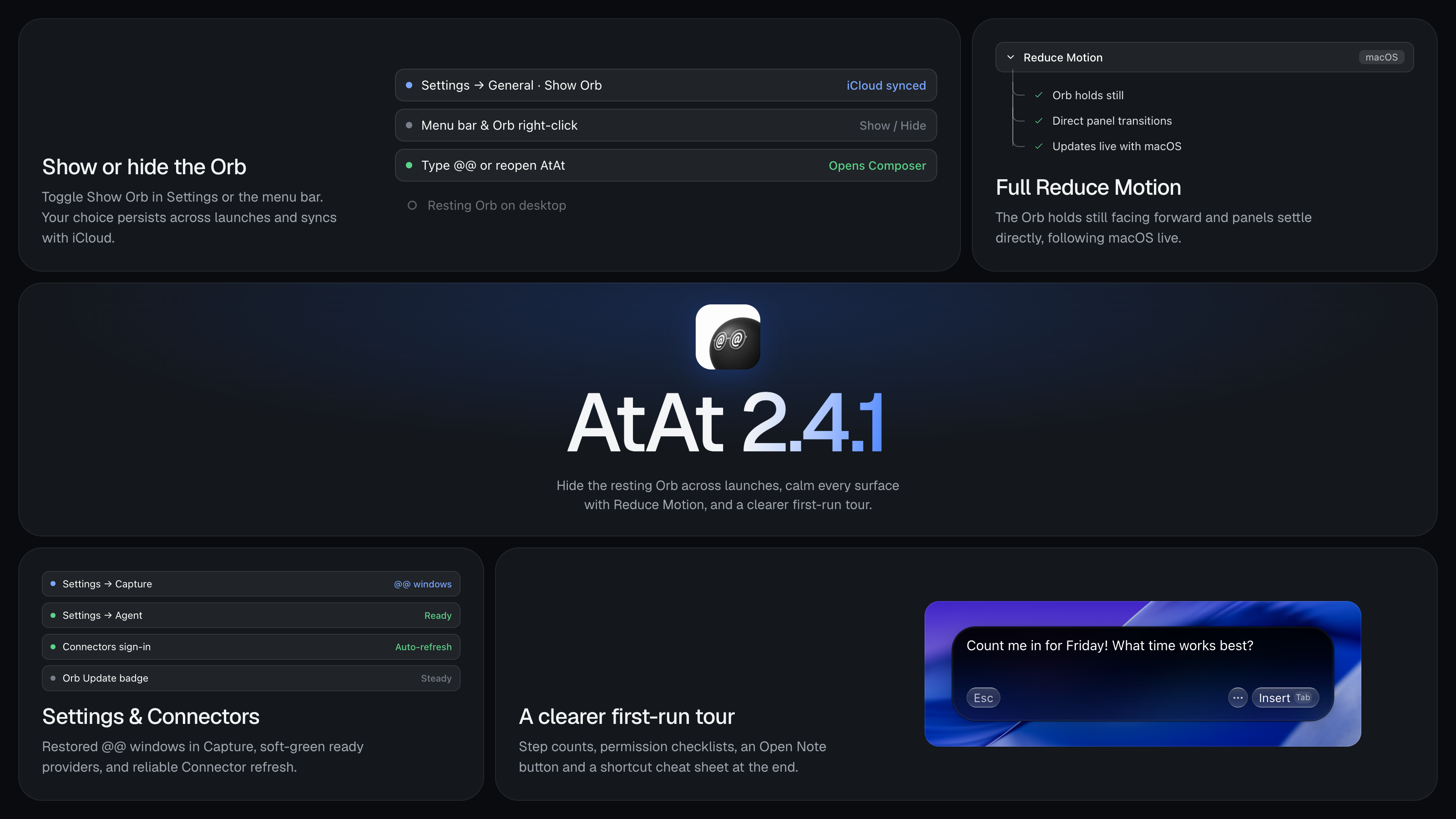
- Keep or hide the resting Orb across launches. Toggle Show Orb under Appearance in Settings → General, from the menu bar menu, or by right-clicking the Orb and choosing Hide Orb. Your choice now persists after a relaunch and syncs with iCloud.
@@, shortcuts, Selection, Capture and the menu bar all keep working while the Orb is hidden, and opening AtAt again from Spotlight or Finder opens the prompt input directly instead of staying silent or bringing back a hidden Orb. - Full Reduce Motion support. When macOS Reduce Motion is on, the Orb holds still facing forward with no gaze tracking, blinking or idle motion, and panels, popovers and transitions settle directly into place. AtAt updates live when you toggle Reduce Motion in System Settings.
- `@@ windows` toggle in Capture settings. Turn on @@ windows in Settings → Capture when you want AtAt's own windows and capture controls to appear in screenshots and recordings (off by default).
Improvements
- Clearer first-run tour. Setup now shows a step counter, explains why each macOS permission is needed with status pills, adds a dedicated prompt when your first draft is ready to insert with
Tab, lets you reopen the practice note anytime with Open Note, asks whether to keep or hide the Orb at the end, and finishes with a cheat sheet of your enabled shortcuts. You can also replay the tour anytime from the menu bar menu. - Ready providers stand out in Settings → Agent. Providers that are already set up appear in soft green on the provider grid, making it easy to spot which ones are ready to switch to versus which still need a key or sign-in.
- Smarter feedback replies. In Send Feedback, I'd like a reply starts checked when you're signed in (uncheck to send anonymously). When you're signed out, pressing Send without checking it asks once whether to add an email address or send without one.
Fixes
- Connectors update reliably after browser sign-in. Connecting Gmail, Calendar, Slack, GitHub and other services now returns cleanly to the AtAt build that started it and refreshes pending connections automatically when you switch back—even if your browser blocks the redirect.
- Steady Orb Update badge. Fixed the blue Update badge getting clipped on the left edge as it expands and fluttering while hovered.
2.4.0
What's New
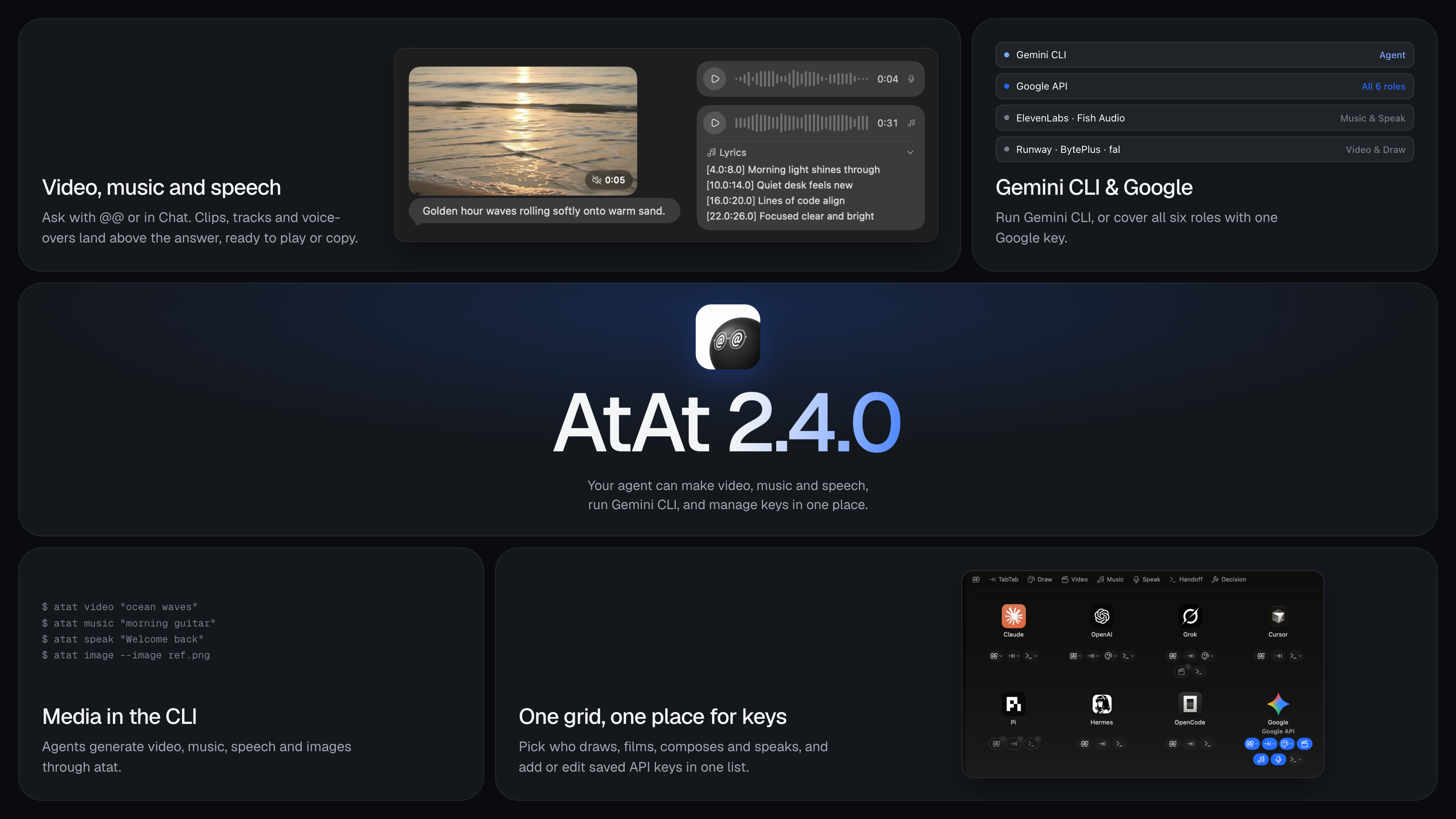
- Your agent can make video, music and speech. Ask for a video clip, a song or a voice-over — with
@@or in Chat — and it lands above the answer, ready to play. Videos loop muted inline with play and sound controls, open in Quick Look on click, and open in the Video Editor from their corner. Songs and voice-overs play inline with a waveform scrubber and expandable lyrics.Taband Copy carry generated pictures, videos and audio along with the text, or you can drag any of them into another app. Pick who generates each in Settings → Agent under Video (Google, Grok API, BytePlus, fal, Runway), Music (Google, ElevenLabs, fal) and Speak (Google, ElevenLabs, Fish Audio), and who draws under Draw (now with Google Gemini and reference images too). - Gemini CLI and Google API. Run Google's
geminicommand-line agent alongside Claude Code, Codex and Grok, with its live model list and reasoning levels. Or add one Google Gemini API key to cover@@, TabTab, Draw, Video, Music and Speak together; Grok API, BytePlus, fal and ElevenLabs each reuse one key across every role on their tile too. - One place for your API keys. Settings → Agent now lists every saved key under API Keys: add a key ahead of time with Add Key…, edit one in place, or remove it without changing the providers picked above. Clicking a greyed-out provider in the model picker jumps straight there.
- Media commands in `atat`. Outside agents can generate media through your configured providers with
atat video,atat musicandatat speak, alongsideatat imagewith--imagereference files.
Improvements
- Stopping a long screen recording finishes right away instead of re-encoding the whole file first.
- Dictation strips spoken pause words more cleanly across languages, formats multi-point thoughts into numbered or bulleted lists, and cancels immediately when you click
×while it finishes. - While your agent draws, films, composes or speaks, the Orb shows a matching animation in the status line and on the floating ball.
- Outside agents can read files and screenshots attached earlier in the same Chat conversation without extra permission prompts.
Fixes
- Dictation stays visible over full-screen apps instead of opening on another Space.
- Double-clicking a Chat bubble to add a reaction works reliably even when the Chat window wasn't focused first, including on interim bubbles and in opened earlier conversations.
- Expanding lyrics on a generated track keeps the card and message list steady without flashing or overlapping nearby messages.
- Buttons on the
⌘⇧5capture bar and floating toolbars highlight with matching rounded corners.
2.3.3
Fixes
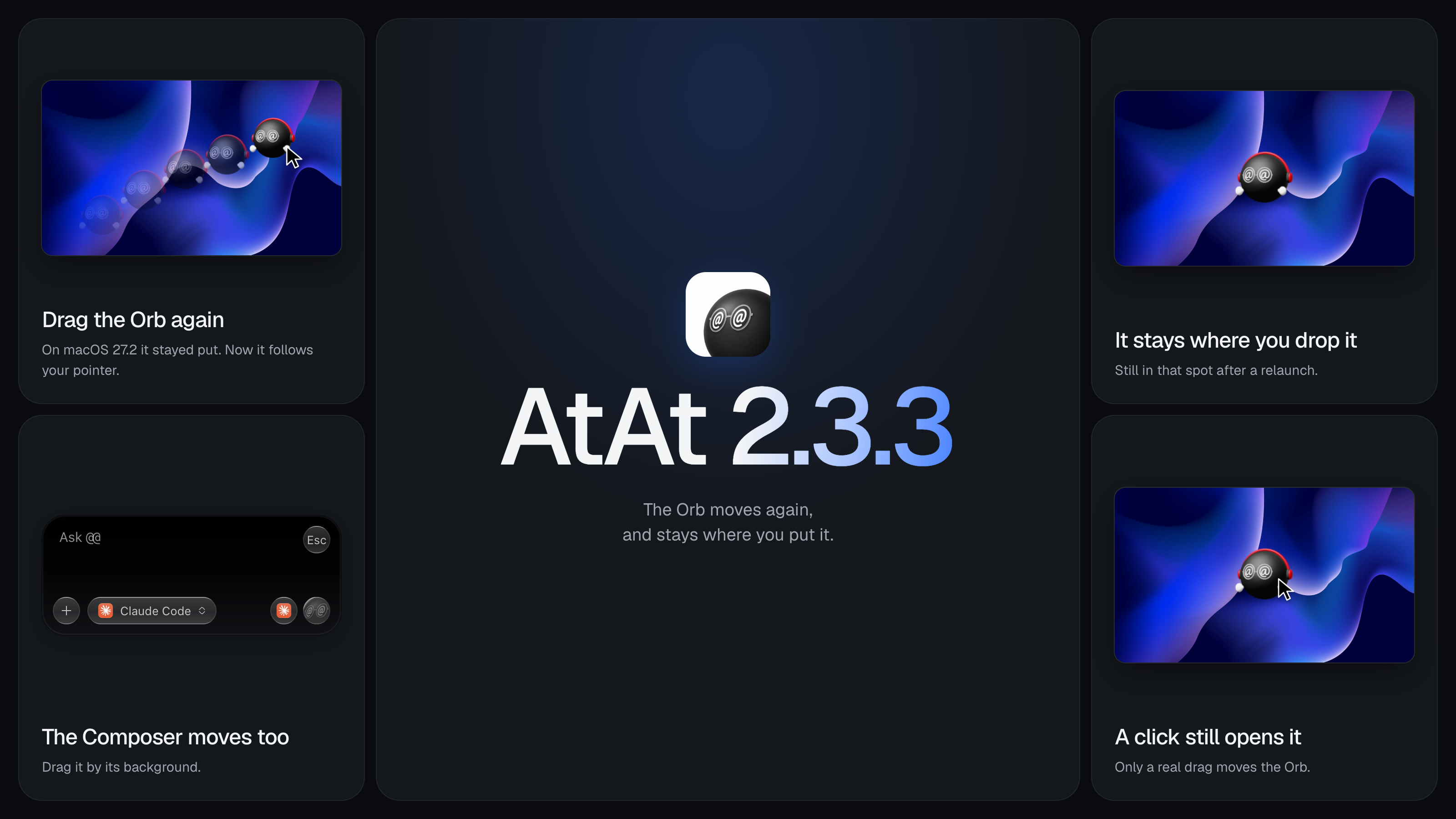
- You can drag the Orb again. On macOS 27.2 it stayed where it was; now it follows your pointer and stays where you drop it, including after a relaunch.
- The Composer moves again too. Drag it by its background.
2.3.2
Improvements
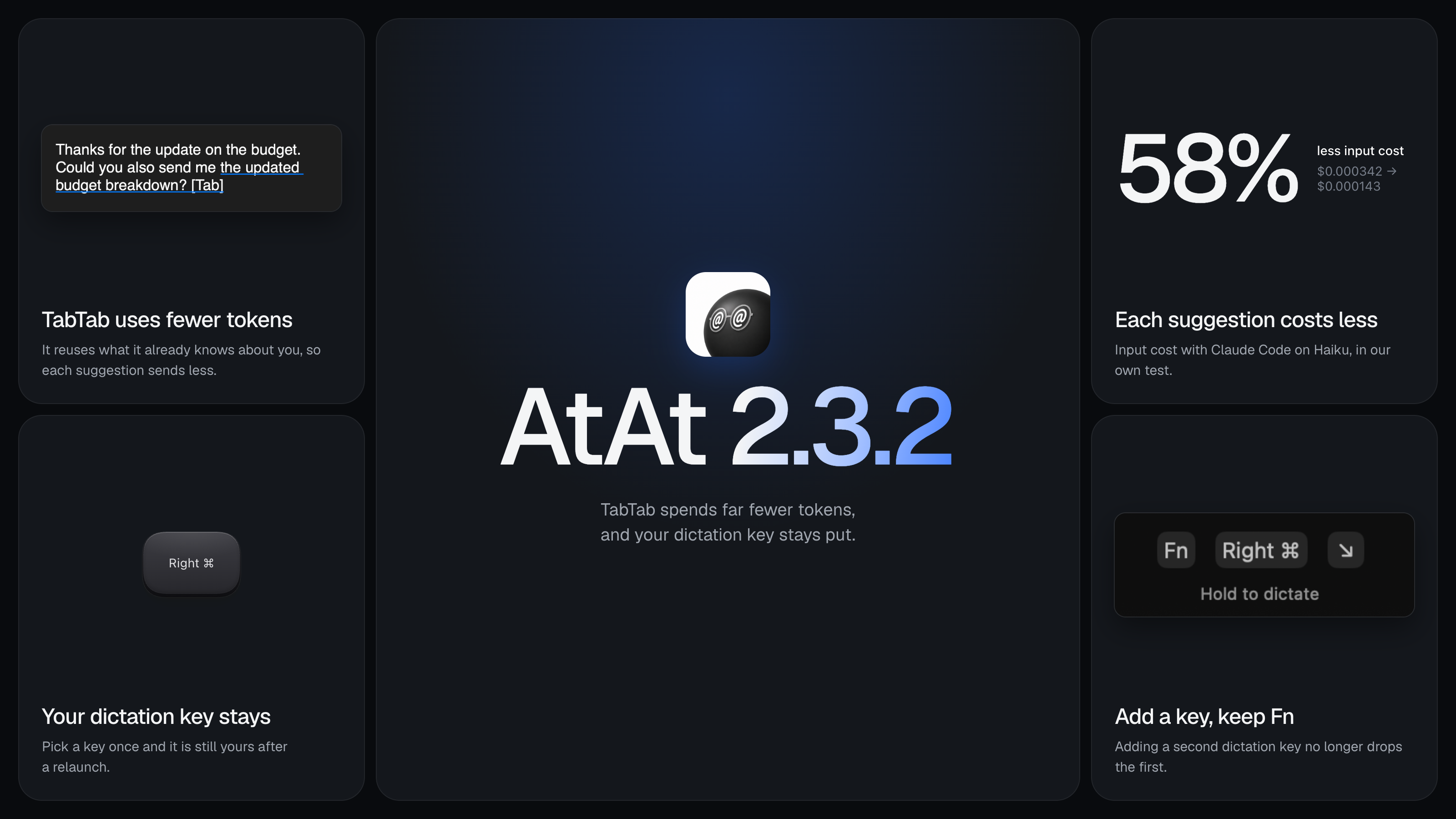
- TabTab uses far fewer tokens. What it knows about you now stays in the part of each request that gets reused, and with Claude Code it picks a cheaper cache. In our test with Claude Code on Haiku, input cost per suggestion fell 58%.
- With your own Anthropic, OpenAI or OpenRouter key, TabTab now asks for the same reuse.
Fixes
- The dictation key you pick stays after a relaunch. If yours had fallen back to Fn, it comes back on its own.
- Adding a second dictation key no longer drops the first, and a recorded key combination keeps listening.
2.3.1
What's New
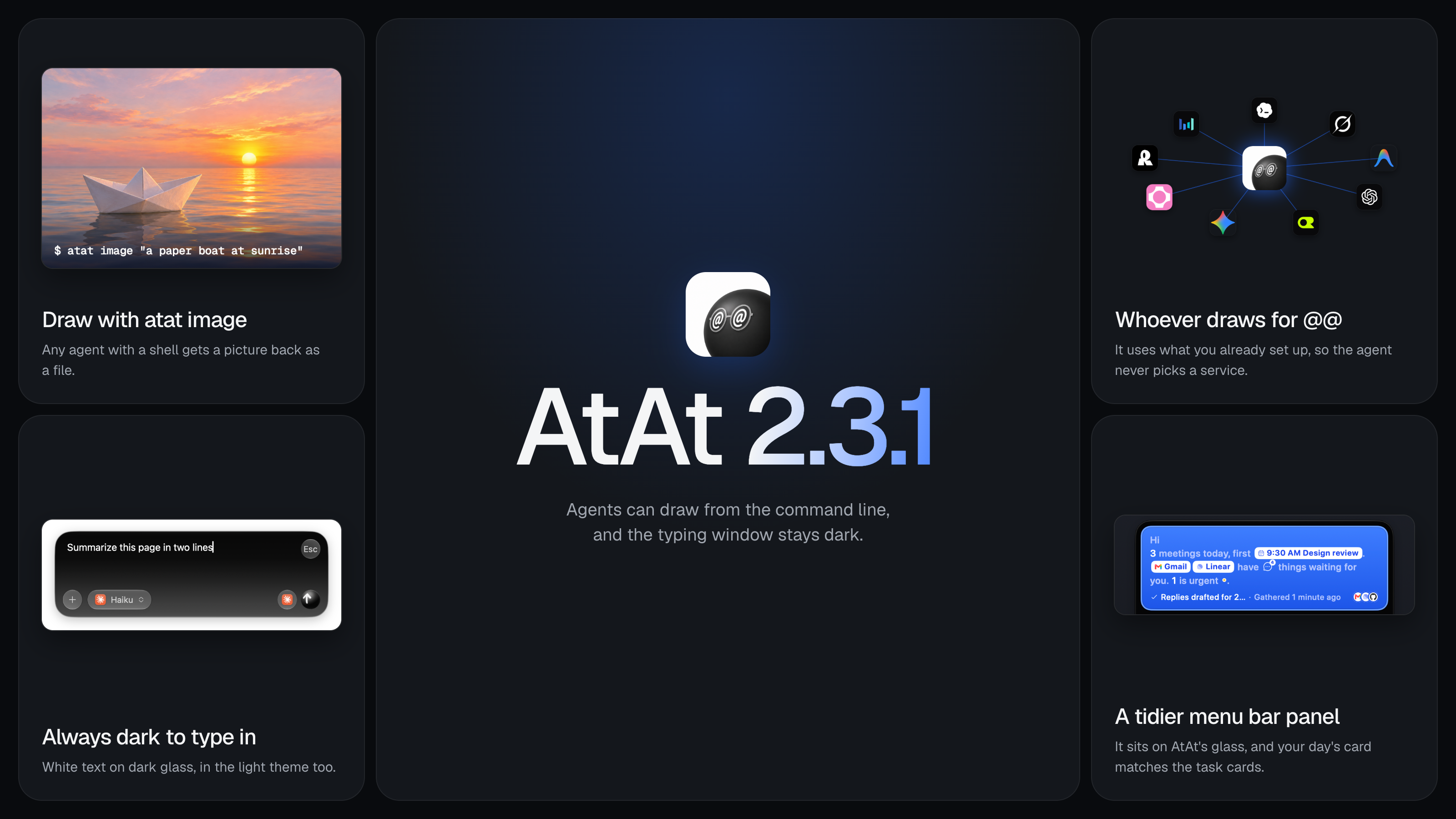
atat image "a paper boat at sunrise"draws a picture from the command line, so any agent with a shell can get one. It draws with whoever draws for@@: the agent or image service you picked on Draw in Settings → Agent, or your OpenAI or OpenRouter key.--sizepicks the shape and--outsaves it where you say.
Improvements
- The menu bar panel now sits on the same glass as AtAt's other windows, and the card that sums up your day matches the task cards below it.
Fixes
- The typing window stays dark with white text when macOS uses the light theme, so what you type is always easy to read.
2.3.0
What's New
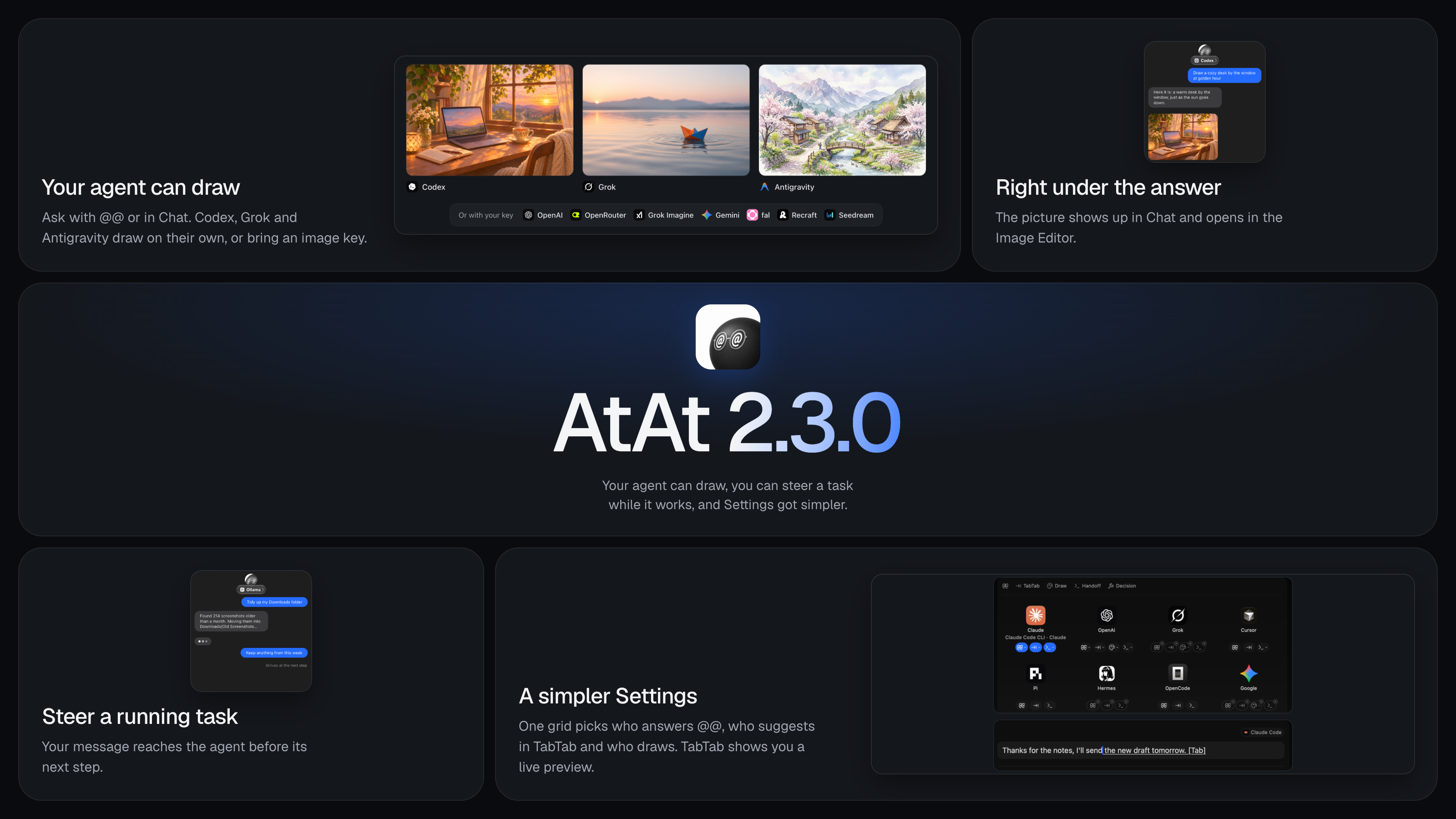
- Your agent can draw. Ask Codex, Grok or Antigravity for a picture, with
@@or in Chat, and it shows under the answer. Agents that can't draw on their own, like Claude Code, draw with your OpenAI or OpenRouter key if you've added one. Insert and Copy take the picture along with the text, and any picture opens in the Image Editor from its corner or a right-click. - Steer a task while it works. On an agent that can read messages mid-task, like AtAt's own agent, a message you send reaches the task before its next step. If a task gets stuck repeating itself or waiting on a silent model, AtAt stops it and puts it in Waiting on you, with Try Another Way to carry on.
- A simpler Settings. There are fewer settings, and each pane shows its choices as icons, small pictures and keycaps instead of rows of text. Settings → Agent is one grid of providers, one tile per company, where you pick who answers
@@, who suggests in TabTab, who draws and where handoffs go. Capture fits on one page, and Account shows your plan in one card with the one button you need.
Improvements
- AtAt Help in the Help menu opens the FAQ.
- In the model picker, providers you haven't added a key for show greyed out.
- Chat has a plainer dark window, a calmer task card and a model strip you can scroll with a mouse wheel.
- Scrolling captures leave AtAt's own floating panels out of the stitched page.
Fixes
- Every question bubble in the Help window is the same height.
2.2.0
What's New
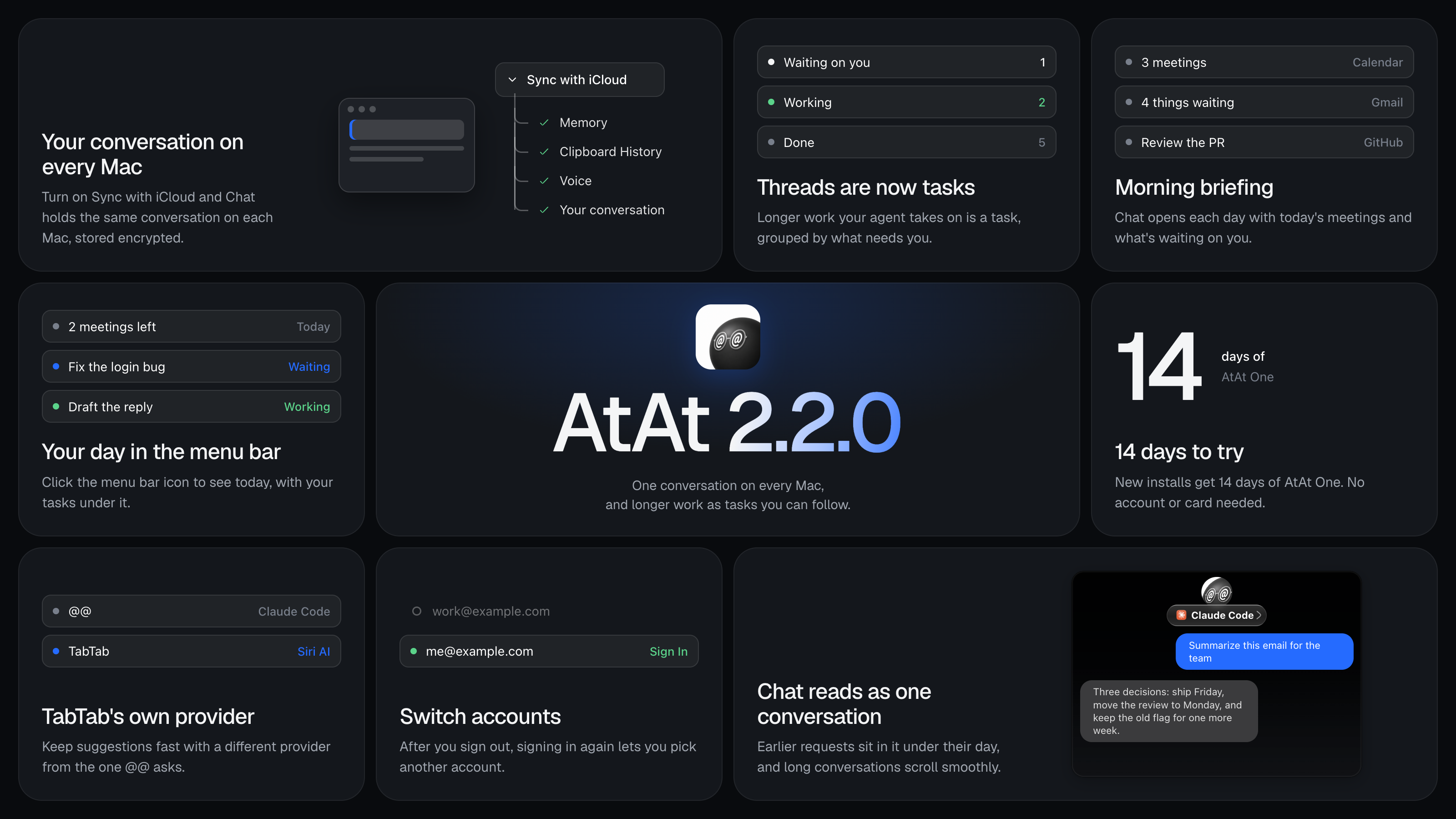
- Your conversation syncs through iCloud. Turn on Sync with iCloud in Settings → General and Chat holds the same conversation on every Mac, without the files you attached. Tasks another device started show up under From your other devices in the Tasks list. Clear Conversation… clears it everywhere. Like Memory and Clipboard History, it's stored encrypted in your private iCloud database.
- Threads are now tasks. Longer work your agent takes on is called a task everywhere you see it, with a dock in Chat, a summary on each card and a question card that lists the answers to pick from, with the recommended one already picked.
- Morning briefing. With your calendar, mail, GitHub or Linear connected, Chat opens each day with today's meetings and what's waiting on you. Click a line and a sentence about it lands in the input. It can also remind you shortly before a meeting, at most 5 times a day. Set it up under Morning briefing in Settings → Connectors.
- Your day in the menu bar. Click AtAt's menu bar icon to see today at a glance, with your tasks under it. Right-click it for the menu.
- Chat reads as one conversation. Each earlier
@@request sits in it as a card under the day it happened. Click one to read it in full, or Reply to carry it on. - A 14-day free trial. New installs get 14 days of AtAt One instead of 7, still with no account or card needed.
Improvements
- TabTab can use a different provider from the one you ask with
@@, so suggestions can stay fast. Pick it in the TabTab section of Settings → Agent. - Voice learns Dictionary words from fixes you make in web page fields and in Chinese text too.
atat memory importalso opens the links in the files it reads, so a file of saved links is remembered for what the pages say.- Memory World stays smooth with hundreds of memories, and you can drag through it. Open it by right-clicking AtAt in the menu bar.
- Long conversations in Chat scroll smoothly, and the input is taller.
- Wide Markdown tables scroll sideways in narrow windows.
- AtAt's line now reads "@ for people. @@ for AI. Less switching. More done. Just @@ it."
- Hints across Settings are shorter, and the ones that only repeated their title are gone.
Fixes
- After you sign out, signing in again lets you choose a different account instead of putting you straight back into the same one.
- TabTab works again with Codex 0.164 and later.
- The buttons on a quick access card show up when the pointer is already over the new card, without moving away and back.
2.1.1
Improvements
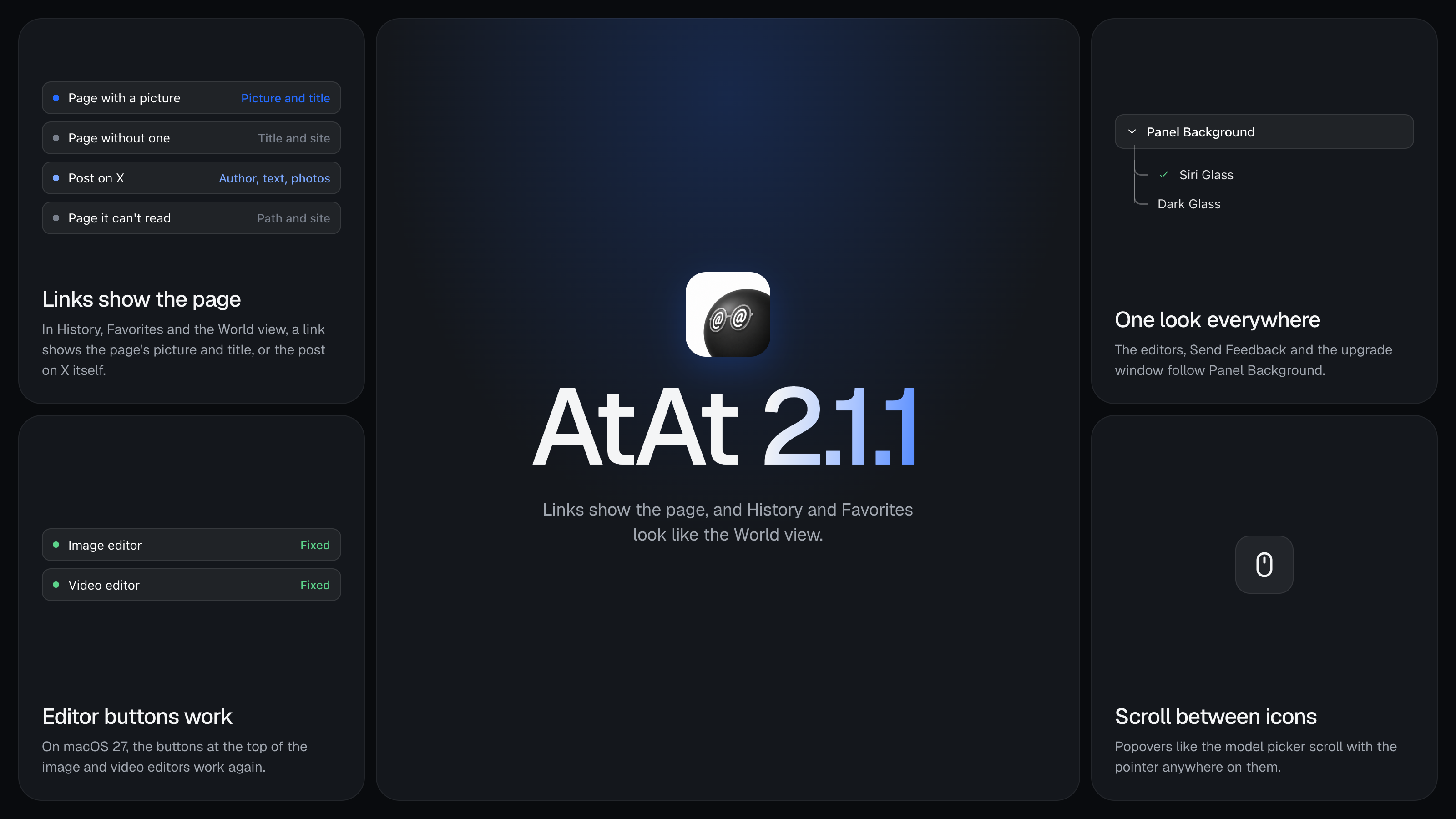
- Links now show the page. A page with a good picture fills its card with it, under the page's title. A page without one shows its title large, with the site's name. A post on X shows its author, its text and its photos, or the post it quotes. A page AtAt can't read shows its path and site, such as
xinyao27/ataton github.com. AtAt reads a page only when its card first comes into view. - History and Favorites draw every card the way the World view does, in the shelf, the gallery and the details. A copied color is a swatch with its value.
- Link previews load while Shadowrocket, Surge or Clash is running.
- Page titles in languages other than English no longer come out garbled.
- In the expanded Clipboard window, Gallery | World, search, filters and actions sit together in one bar at the bottom, and nothing in the World view covers them.
- The gallery keeps up when you scroll fast.
- The image and video editors, Send Feedback and the upgrade window now follow Panel Background in Settings → Appearance, like AtAt's other windows.
Fixes
- On macOS 27, the buttons at the top of the image and video editors work again.
- Scrolling the model picker's row of providers works with the pointer between two icons, and the same goes for every other popover.
2.1.0
What's New
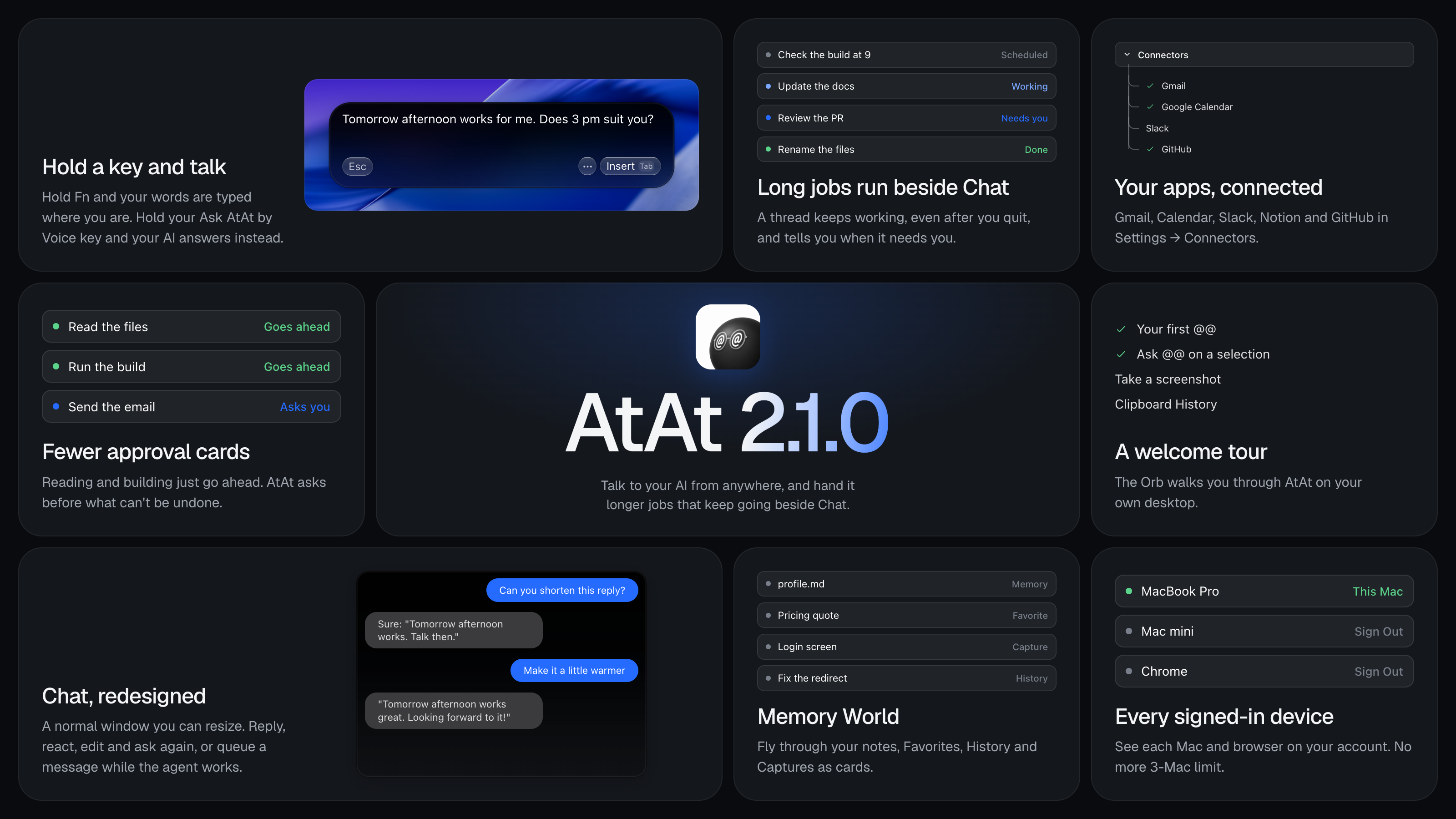
- Dictation. Hold
Fnand talk, and your words are typed where you are. Give Ask AtAt by Voice a key in Settings → Shortcuts, hold it instead, and AtAt asks your AI what you said; the answer opens in the preview card, andTabputs it where you were typing. Tap the key once to talk hands-free, for up to 9 minutes. It works in AtAt's own input and in Chat too. - Settings → Voice has Overview, History, Dictionary and Settings. A dictation that couldn't reach the server stays in History with Try Again. When you fix a word right after a dictation, AtAt adds it to the Dictionary, with Undo. Signed in, you get 2,000 free words a week; a plan has no limit.
- Threads. Longer, many-step work can run as a thread beside Chat, so you aren't stuck waiting on the card. The answer is one line with the thread's card under it; click it to watch the thread, message it, stop it, or mark it resolved. A thread tells you when it finishes, fails or needs you, with a line in Chat, a notification and a dot on the Orb and the menu bar icon.
- Threads keep going after you quit or restart AtAt, and your agent can schedule work for later, like "check the build tomorrow at 9". In a Git project, a thread works in its own checkout and leaves your branch alone.
- Connectors. Connect Gmail, Google Calendar, Slack, Notion, GitHub and more in Settings → Connectors, and your AI can look things up and get things done in them. When a request needs an app you haven't connected, a Connect card appears under the answer. Reading just happens; sending, changing or deleting follows the same approval rules as every other step.
- A new welcome tour. The Orb walks you through your first
@@, Ask @@ on a selection, a screenshot, Clipboard History and TabTab right on your own desktop, one step at a time. Connect Gmail or GitHub during the tour and AtAt writes your first memory about you. - Memory World. Choose Memory World in the menu bar to fly through your Memory notes, Favorites, History and Captures as cards in one dark space. Search, filter, use the minimap or the timeline, and click a card to read it, ask about it in Chat or forget it. Clipboard History, Favorites and Captures have a Gallery | World switch too.
- Fewer approval cards. Agents no longer ask about every step. Reading, building and testing just go ahead. AtAt only stops to ask before steps that can't be undone, send something off your Mac, touch passwords or security settings, run code from the internet, or set something to start on its own later. The card says in one sentence what would happen, with Go Ahead (
⌘Return) and Not Now. - Chat, redesigned. Chat is a normal window you can resize. Reply to a message, react with a double-click or
⌘T, add it to Favorites, delete it, or edit your own message and ask again from there. Messages you send while the agent works wait their turn. The model picker groups models by provider, with search, stars and⌘1–⌘9. - A ring next to the input shows how much of the context window is used, with Compact Now, for agents that report it.
- Siri Glass. Panels have a new default look: near black at the top, letting the desktop show through further down. Switch back to Dark Glass in Settings → General → Appearance.
- Drag the Orb onto a window and the input opens with that window's screenshot and layout attached.
- Updates download on their own and install when you quit. If AtAt stays open, it asks to restart only while you're away from the keyboard, at most once a day, and never restarts by itself. Turn this off with Download updates automatically in Settings → General.
- Signed-in devices. Settings → Account and your account page on atatapp.com list every Mac and browser signed in to your account, and you can sign out the ones you don't use. There's no longer a limit of 3 Macs.
- TabTab knows you better. Memory now keeps a
profile.mdnote with your name, languages, tone and sign-off, and TabTab uses it so suggestions sound like you. Learn from Mail in Settings → Memory fills it in from emails you sent. TabTab also reads the latest messages in the conversation you're replying to.
Improvements
- The paid plan is now called AtAt One: one subscription for every AtAt app. Nothing changes about what you already have.
- TabTab no longer decides things for you. It stops before a time, a number, a name, a promise or a yes/no that's yours to choose, and keeps chat replies short.
- TabTab works with Codex on Macs with a long Codex history.
- TabTab's background process quits after 15 minutes idle or when you step away.
- Settings → Agent shows which copy of a command-line agent actually runs, and its version.
- Antigravity runs through the
agycommand you already have installed, with every model it offers. - Agents start sooner after you type, so answers arrive faster.
- AtAt's own agent retries on its own when a provider is briefly overloaded or offline.
- Clipboard History pastes back into the field you came from. Links show a page preview in the expanded window too, and videos show their first frame and play on hover.
- Quick Access settings moved into Settings → Capture → After Capture.
- The input shows only the provider you're using, without a row of logos.
- One accent blue across the app, native window title bars and thin scrollbars everywhere.
- Launch at login turns on after a fresh install finishes the welcome tour.
- Conversations written by this version still open in older versions.
Fixes
- Fix Grammar and the other selection actions no longer leave the Orb thinking forever.
- Fix Grammar keeps your line breaks in TextEdit and similar apps, and offers Insert again.
- The Fix Grammar comparison card is no longer cut off at the top.
- Dragging a Quick Access card into a text field inserts only the image, without its file path.
- TabTab no longer leaves out the space between your cursor and the suggestion.
- The Voice heatmap legend reads “Less” to “More” in Chinese and Japanese.
Good to know
- When Chat runs on Claude Code, AtAt now gives it AtAt's own instructions. Your project's settings and
CLAUDE.mdstill apply, and so does how you sign in (an API key, Bedrock or Vertex in~/.claude/settings.json), but your user-level skills, hooks, plugins and MCP servers are not loaded in AtAt. - Antigravity needs a recent
agycommand, installed and signed in. If yours is too old, AtAt asks you to update it. AtAt no longer downloads a helper for it. - The chat in the terminal is gone:
atat,atat chatandatat askno longer talk to an agent. Type@@in AtAt, or use your own terminal agent. Theatatcommand's other tools are unchanged.
2.0.1
Improvements
- Each new
@@now starts your agent with the earlier work that relates to it: a one-line recap of the last 24 hours, up to two earlier requests from the same window, file, or app, and your last answer if it came in the past 15 minutes. Before, it brought along whatever you did last, which was often a different task. Your agent can still look further back in the conversation on its own, and AtAt no longer makes you wait while it summarizes earlier turns. - The input, the preview card, and Chat now open at the same width, and the input's text uses its full width with Esc in the top-right corner.
- The send and stop buttons are the Orb itself, its whole face one large arrow or square, so they're easy to read at a glance.
- An answer streaming into the preview card grows the card smoothly ahead of the text, with no jump at the end. Bold, lists, and headings are styled from the first character, and list items line up under their markers.
- Chat opens at the latest answer, and the Copy and ⋯ buttons under each answer no longer leave a blank line between turns.
- Image attachments show a thumbnail in the input.
- In Settings → Extensions, your extensions hang off one rounded rail under Extensions, so the list reads as one group.
Fixes
- Turns in Chat no longer overlap while an answer is still arriving.
- The gap under the working indicator in Chat is gone, so the reply no longer shifts when the agent finishes.
- The mouse wheel and trackpad scroll Chat while the pointer rests on an image or a code block.
- Menus no longer show a dark square outline around their rounded corners.
- A long answer no longer scrolls out of view while the preview card opens.
2.0.0
See what changed in AtAt 2.0 →
What's New
- One continuing conversation. Every request and answer, from any app and with any agent, now stays in one conversation that carries on after you switch agents or restart. Click the preview card or press
Returnto expand it into Chat, or right-click the Orb and choose Open Chat to come back to it later. Chat loads 30 turns at a time as you scroll up. To delete a message, or everything after it, use the ⋯ menu next to Copy. - Bring over your earlier conversations. A line at the top of Chat offers Bring Over, which copies your 1.x conversations and their attachments into the new conversation. Settings → General → Conversation Data has the same import, plus how much space the conversation uses, Clean Up… for old screenshots, and Clear Conversation….
- Memory: notes your agents read before they start. Memory is a folder of Markdown files in a Git repository on your Mac, at
~/Library/Application Support/AtAt/MemoryRepo. Every request carries it, so your agents follow it from the first message to the last. With Automatic learning on, AtAt writes down what's worth keeping a few idle minutes after you chat and tidies Memory once a day. Every change is a commit you can read. Edit the files yourself and AtAt keeps your edits. Ask it to forget something and it stays forgotten. Memory needs Apple's command line tools, whichxcode-select --installadds. - Memory follows you to your other Macs when Sync with iCloud is on. Only the current notes travel. They're stored encrypted in your private iCloud database, and end-to-end encrypted when Advanced Data Protection is on. Each Mac merges what the others learned, and something you ask to forget on one Mac is forgotten on all of them. Settings → Memory shows whether it's up to date and has Sync Now.
- Clipboard History and Favorites now sync one item at a time through your private iCloud database. What you copy on one Mac shows up on the others, edits made on two Macs combine, and deleting an item on one Mac removes it from all of them. They're stored encrypted, and end-to-end encrypted when Advanced Data Protection is on. Being signed in to iCloud is enough, and iCloud Drive can stay off. If you used iCloud Sync in an earlier version, AtAt reads your items from the old iCloud folder once, on its own, and never changes that folder.
- Your other agents can use AtAt. The
atatcommand lets Claude Code, Codex, or any agent with a shell take screenshots, read your recent copies, Favorites, and Finder selection, and read and edit your Memory. It can also film a demo of an app: the agent writes the steps, AtAt performs them, and the video opens in the Video Editor with zooms already in place. A note at the top of the screen says which agent used AtAt. AtAt installs the command at~/.local/bin/atat, and you can switch it off in Settings → Agent → atat CLI. To add the AtAt skills, runnpx skills add xinyao27/atat-skillor install them as a Claude Code or Codex plugin. - AtAt in your terminal. Run
atatto talk to your selected agent right in the terminal, oratat ask "your task"to run one task and print the answer. It uses the same agent, approvals, and Memory as the app. - Approvals in Chat. In a follow-up, every agent asks before it runs a command, changes files outside AtAt's scratch folder, or uses your own MCP tools, one card at a time. Choose Allow Once, Always Allow for a rule the card spells out, or Don't Allow. Your saved rules are listed in Settings → Agent → Allowed Actions.
- Extensions add what AtAt doesn't do on its own: another action on the selection bar, a step that tidies what you copy before your agent sees it, or a panel with its own controls. Browse them at atatapp.com/extensions. Each extension gets only what it asks for, and AtAt checks with you before installing one that wants a folder, a website, or your agent.
- Answers appear in the preview card as they're written, and a line under the text says what the agent is doing and for how long. In Chat, a reply reads in the order the agent worked. A single line such as "Read 3 files, ran 2 commands" opens to show each command and its output, each edit, and each file read.
- The Orb has a life of its own. It taps along while you type, though it never knows which key. It dozes off when you walk away, blushes when you rub it, and gets dizzy when you shake it. On holidays it wears a hat, and you can choose a hat any day from its right-click menu. With Reduce Motion on, it holds still.
- Favorites remember where they came from. Text you save from a selection keeps its page, file, or window and a few words on either side. Open the source from the right-click menu, filter by Source, or choose Collect into Note to turn everything you kept from one page into a single Markdown note. Your agent can search and read your Favorites, and links you save keep a copy of the page. To keep Favorites away from your agent, turn off Let @@ search your Favorites in Settings → Clipboard.
- Share Link: upload a capture or an export and copy an atatapp.com link that anyone can open without an account. Manage your links in Settings → Account → Shared links, where you can add a password, change when a link expires, or delete it.
- Send Feedback… from the menu bar, the Orb's right-click menu, Chat, or Settings → About. You can include your version, settings, and last message, and see exactly what goes out before you send.
- Keys you press while recording now show up as real keycaps that sink and spring back.
Improvements
- Every new Mac starts with a 7-day Pro preview. After it ends, screenshots, recording, OCR, Clipboard History, Favorites, and both editors keep working without a plan. Without a plan, editor exports carry a small AtAt logo mark, and recordings go up to 1080p, 30 FPS, and five minutes. A plan adds clean exports, 4K recording at up to 120 FPS with no time limit, share links, and iCloud Sync. Running your agent needs a plan, as before.
- Antigravity now downloads and checks its official component on its own when you select it, and uses your existing Antigravity sign-in.
- Codex, Grok, Cursor, Pi, Hermes, and Antigravity list their models and reasoning levels straight from the installed app. Default runs whatever you set there. In Settings you pick the model first, then a reasoning level that model supports.
- A model you pick for Cursor applies only to AtAt's requests. Your own Cursor settings stay as they are.
- The input window never opens on an agent that can't answer right now. That request goes to the first ready agent, and your choice comes back afterwards. With two or more agents ready, an empty input shows them as a row of logos the first few times, so you can switch with one click.
- Slow-thinking models and long tool runs no longer time out while they're still answering. A request ends early only when the connection goes quiet.
- Siri AI can read screenshots and images on macOS 27 when its model supports them.
- Chat stays smooth however many earlier messages you load.
- Hold
⌥while dragging out an area to grow it from its center. - Onboarding opens with the Orb and includes an optional step to sign in to your AtAt account.
Fixes
- When macOS ends a recording on its own, for example when a display is unplugged, AtAt now saves the recording. Stopping a recording no longer leaves the recorder stuck.
- The preview card now fits the whole answer, so a short list no longer loses its last item and Chinese answers get the room they need.
- Answers written as i., ii., iii. now appear as a list.
- AppleScript actions in Settings → Text Selection keep straight quotes and double hyphens exactly as you type them.
- Reasoning an agent writes inside its answer no longer appears in the reply.
Before you update
- Settings → History is replaced by Chat, where your conversation now lives.
- The conversation stays on each Mac and is no longer part of iCloud Sync. Earlier conversations come over with Bring Over on each Mac.
- AtAt 2.0 needs an Apple silicon Mac running macOS 15 or later, the same as before.
1.2.0
What's New
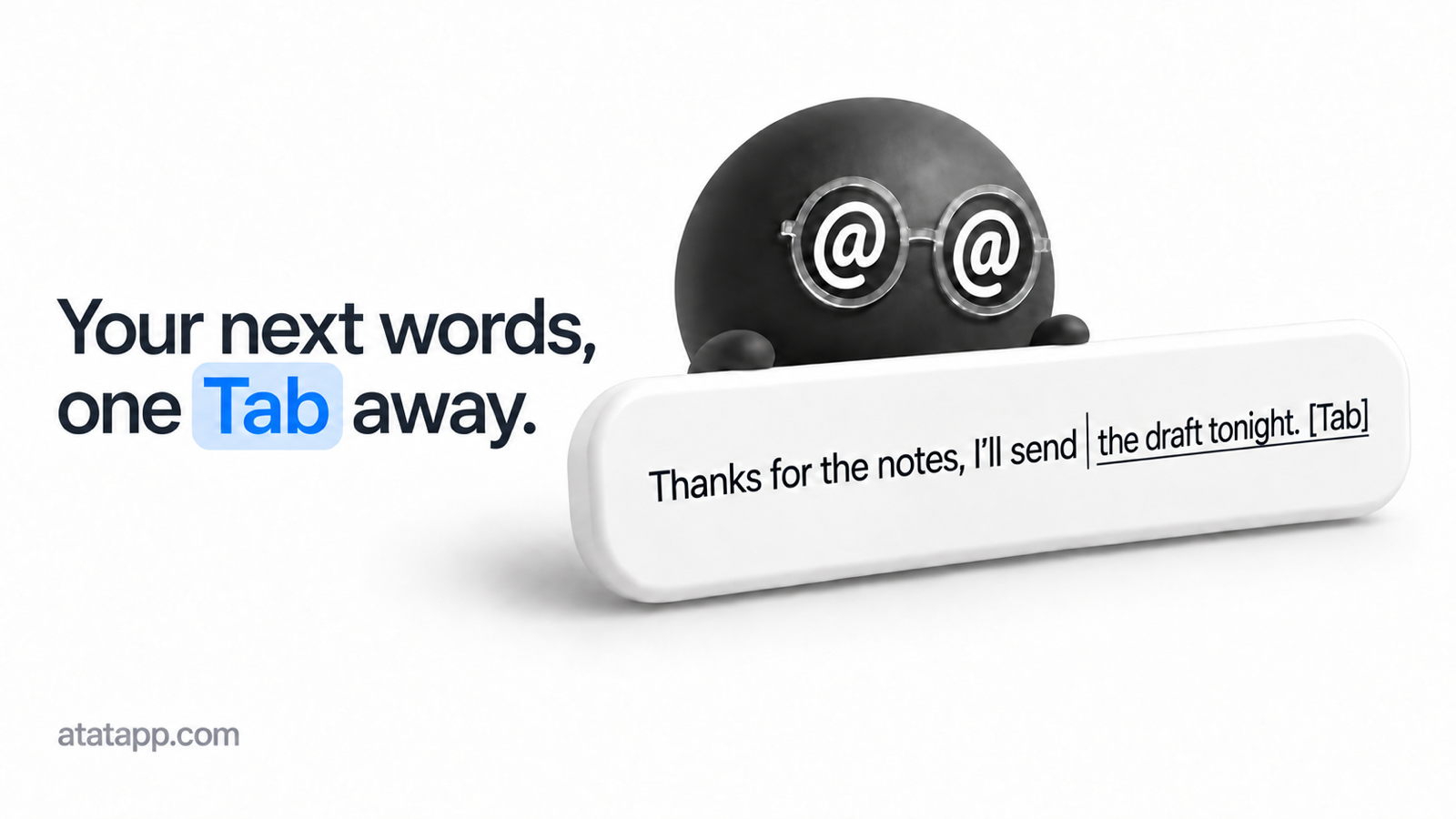
- TabTab, in beta: press
⌥⇥in any text field and @@ writes the next few words right inside it, in the field's own font. PressTabto keep them and @@ offers the next part; keep typing or pressEscto skip. In a chat, suggestions follow the conversation. Add apps in Settings → TabTab → Apps and @@ suggests on its own whenever you pause there. - TabTab writes with the provider and model you chose in Settings → Agent, including Ollama and command-line agents. If that provider can't answer, suggestions stay off until it can, and @@ never swaps in another one. Each suggestion sends the text around your cursor and the app, window and field you're in. Text on screen and a picture of the window can go too; turn either off in Settings → TabTab. With Siri AI, nothing leaves your Mac.
- TabTab never shows up in password fields or while you're still composing with an input method. In a terminal, a suggestion ends at the line break, and
Tabnever runs a command. If an app can't show a suggestion in its field, the suggestion appears on @@'s card, whereTabstill puts it in. - TabTab is on by default, including after you update, and comes with the paid plan and the free trial. To write inside the field, @@ adds one entry to your input sources while TabTab is on. Your keyboard doesn't change, and turning TabTab off takes the entry out. @@ backs up your input source settings first, and Settings → TabTab → Restore input source settings puts them back. Onboarding adds a short hands-on lesson for TabTab.
- Fix typos as you type: ask for a suggestion right after a misspelled word, or pause on one in an app you've added, and @@ offers the right spelling next to your cursor.
Tabtakes it; keep typing or pressEscto ignore it. Your Mac's own dictionary does the checking, and nothing is sent. In a terminal, only words inside quotes are checked. Turn it off in Settings → TabTab → Corrections. - Fix Grammar in the selection bar corrects the spelling and grammar of the selected text and shows what changed, line by line, before you put it in place of your selection.
- Put your camera in Studio Mode recordings. Pick your Mac's camera or an iPhone nearby; it's saved as its own layer, so in the video editor you can move it, resize it, make it a circle, add a shadow, mirror it, shrink it during zooms, or hide it for a stretch.
- Antigravity CLI is now a built-in agent, with its Gemini, Claude, and GPT-OSS models and the reasoning levels each one supports.
- Choose where screenshots, recordings, and edited images and videos are saved in Settings → General → Export location. The editors' save panels open there too.
Improvements
- Right-click the Orb while a request is running and choose Stop request. A chat reply stops and the conversation stays open; anything else stops without typing into your document.
- Grok, Codex, and Antigravity load their model lists from the installed CLI, so new models show up without waiting for an @@ update.
- Claude Code adds a No thinking option, and Ollama thinking models offer reasoning levels too. API models list the reasoning levels each one supports, and No thinking really turns thinking off where the model allows it.
- The model menu in the input window now lists every model a provider offers.
- When a command-line agent's plan runs out or its sign-in expires, @@ says so and tells you what to do next. When OpenCode's plan runs out, the request now ends right away instead of retrying until it times out.
- API and Ollama models that can see images can now open pictures on your Mac, like screenshots and diagrams, not just text files.
- In Clipboard History, just start typing to search. With a Chinese, Japanese, or Korean input method, the first key opens Search and the rest compose normally. Clear History now asks before deleting anything, and opening and closing the gallery is smoother.
- VoiceOver can now name and use Clipboard History, Quick Access cards, the image editor toolbar, and the resting Orb, and it reads notices aloud when they appear.
- On macOS 26, the selection bar, the capture and recording toolbars, and notices follow your Mac's light or dark appearance. @@'s dark panels are a little darker so secondary text reads more clearly, and Increase Contrast makes them clearer still.
- The image and video editors now sit on a solid background, so your desktop no longer shows through behind your work. Their controls also look the same in both.
- When selecting a window to capture, the window under your pointer is highlighted in your accent color on every display.
- 15 new wallpapers for image and video editor backgrounds.
- In Settings → Text Selection, adding an app to Excluded apps now opens a list you can search.
- When your trial has ended or your plan needs attention, @@ no longer opens Account settings on its own. The notice carries the one button you need, like Buy a plan, and the reminder two days before your trial ends has a Buy a plan button too.
- The Orb moves smoothly from one state to the next instead of blinking or snapping, and error messages on the Orb now wrap onto up to three lines.
- @@ now does less work in the background and while you type, and uses less energy when idle.
Fixes
- @@ no longer replaces choices you made: a model this version doesn't recognize, your reasoning level, options you added to a command template, and your Custom command template now stay as you set them.
- Resuming an older conversation no longer changes the agent used for new ones.
- When an API model's answer runs past its length limit, @@ now shows what it wrote instead of an error.
- Fixed Grok replying that no prompt was given.
- With Ollama selected, Settings → Agent now checks whether it's running each time you open it.
- After you change @@'s language, the built-in selection bar actions switch to it too. Actions you edited stay as you wrote them.
- Fixed the selection bar sometimes not appearing, including after a middle-click or a scroll during a drag, and a dismissed bar blocking clicks where it had been. The bar also stays away from text you're still composing with an input method in apps like Notes and Mail.
- In Dia, answers put into web editors like Google Docs are no longer cut off, and searching a selection opens the results in Dia.
- With iCloud Sync on, @@ no longer keeps your Mac busy while nothing is changing, and syncing pauses while the display sleeps.
- Screenshots and other files @@ hands to your agent no longer show up in Spotlight searches.
- Clipboard History no longer sits under the Orb and notices. On macOS 26, buttons in Clipboard History and the scrolling-capture controls now highlight when you point at them.
- In editor dialogs,
Returnno longer confirms a delete. - Canvas presets keep their saved order, and one damaged preset no longer erases the rest.
- Fixed @@ quitting unexpectedly when a message sent to a command-line agent contained a hidden null character.
1.1.1
Improvements
- Refined Settings switches and made Copy and Edit actions easier to distinguish.
- Reduced disk activity while iCloud Sync is idle.
Fixes
- Fixed incomplete text replacement when rewriting a selection in browser-based editors.
- Fixed area-screenshot controls disappearing after switching Spaces, entering full screen, or changing displays.
- Clipboard History, Favorites, and Captures now keep their scroll position when you click an item. Arrow-key navigation still brings the selected item into view.
- Fixed the image editor unexpectedly entering or leaving Mockup mode when the inspector updated.
- Improved deletion handling in iCloud Sync.
- Prevented synced settings from clearing preferences that were only saved on the current Mac.
1.1.0
What's New
- @@ now supports Apple silicon Macs running macOS 15 or later. Liquid Glass and Siri AI still require macOS 26 or later; Siri AI is unavailable on macOS 15.
- Resume saved conversations directly in Chat, including messages, attachments, tool activity, and saved drafts. Continue in the same history entry whenever you're ready.
- Add files and images to Chat with the attachment button, paste, or drag and drop. Preview attachments before sending and open sent files with Quick Look.
- Right-click the resting Orb to open Settings, hide the Orb, or quit the app.
Improvements
- Follow-up messages keep the original conversation with supported agents. Longer conversations with the built-in agent can organize older context to make room for new work.
- Stop a reply without losing the text already received. Partial answers stay in History and remain available to copy or insert; the Stop button keeps Chat and your draft open.
- Copy individual answers without closing Chat, inspect tool activity and reported token usage, and jump back to the latest message after scrolling up.
- Continue a conversation in your selected app or terminal with its messages and attachments. Chat stays open if the handoff cannot be prepared or launched.
- Clearer attachment guidance explains when a model cannot read a file or carry earlier attachments into a conversation.
Fixes
- Fixed clipboard history retaining keyboard focus and interfering with pasting into the original app.
- Corrected the Siri AI icon and improved its availability handling on unsupported systems.
1.0.2
Improvements
- Your most-used skills now appear first in the
/picker, with your choices remembered on this Mac between restarts. Search still puts names starting with your query first.
Fixes
- Fixed input box resizing that could make editing text unstable, especially as longer messages begin to scroll.
1.0.1
Improvements
- Single image and video files in clipboard history now show an image preview or a still video frame, including older entries while the original file is available.
- See your Free, Monthly, Annual, or Lifetime plan beside your name in Settings and on the website.
- Change your plan or refresh its status from Settings → Account. The active Account page also checks for changes every 15 seconds.
- Review plan-change pricing before paying, with clearer payment status and recovery steps when an upgrade fails.
- Updated the website's feature demos and preview images, including Handoff.
Fixes
- Restored the Orb's file-drop feedback with a larger, clearer drop target.
- Folder attachments and working directories now show folder icons again.
- The Orb's Update badge now appears only when an update is available. Closing the update window keeps the reminder; installing or skipping the update clears it.
- Plan checks from a previous sign-in can no longer overwrite the account you switched to.
- Resolved account errors and billing notices now clear after a successful plan refresh.
- Improved payment and plan synchronization. A failed yearly upgrade keeps your monthly access, and payments that need attention show clearer guidance.
- A Mac removed from your account stays removed after restarting @@. Sign out and sign in again on that Mac to reclaim a place within the three-Mac limit.
1.0.0
Your agent, wherever you type.
@@ 1.0 is here. Start with a question where you're already working, bring in the context you choose, and put the answer straight back into your work.
Type @@. Ask. Put it back.
Type @@ in an editable text field — an email, a message, a document — and write what you need. With Screen Context enabled and a model that supports images, a screenshot joins your prompt as a visible attachment you can remove before sending.
Press Return to ask. Review the answer in a small preview card, then click the card or press Return to keep talking: “shorter”, “more like me”, “keep the last paragraph”. When it's ready, press Tab to insert the latest answer at your original cursor. If the original field is no longer safe to edit, your answer stays on the clipboard.
For a larger task, press ⌘Return to open your chosen agent app or terminal with your prompt and context. You choose the agent: your own CLI, a supported API with your own key, or a local model. Your prompts never pass through our servers.
Capture — ask about what you see
Draw a box around a chart, an error, or anything you want explained, then choose Ask @@. The capture becomes context for your question.
Use ⌘⇧4 for an area screenshot, ⌘⇧3 for the current display, or ⌘⇧5 for the All-In-One toolbar. Capture a window or a scrolling page, extract text with OCR, or record video and GIFs. Open a capture in the image or video editor to annotate, crop, trim, and share it.
Text Selection — act on the words in front of you
Select text in a supported app and a small action bar appears beside it. Ask @@, copy, search, or save it to Favorites. Turn on built-in actions such as Summarize and Explain, or create your own in Settings → Text Selection.
Review a rewrite before replacing the selected text. When the selection can't be safely edited, copy the result instead. You can turn the bar off for individual apps.
Clipboard & Favorites — find it again
Press ⌘⇧V to search recent text, images, links, and files you've copied. Paste an item back, keep it in Favorites, or send it to your agent.
Expand the shelf into a gallery to browse more at once, filter by type or source app, and open a larger preview. Favorites keep useful material separately from your clipboard history, including notes with several attachments. You can also save a draft from the @@ input with ⌥Return, without asking an agent.
Session History — return to an answer
Open Settings → History to revisit your questions, answers, and follow-up turns together. Copy an answer or reuse an earlier prompt to start a fresh request. History is a record of the conversation; reusing a prompt doesn't resume the old session.
Sessions stay on your Mac by default. Optional iCloud sync lets them follow you to your other Macs.
Finder — start with your files
Type @@ with a Finder window in front. The current folder and selected files appear as context, ready for your request. Press ⌘Return to open a terminal agent in that folder with the task already loaded.
Captures & Editors — keep your work editable
The image editor has annotations, redaction, crop, backgrounds, and mockups. The video editor has trim, zoom, speed, audio, and video or GIF export.
Your first edit creates an autosaved project in Captures, alongside History and Favorites in the clipboard shelf. Reopen it later with your edits and undo history intact. Save a portable .atatproject copy when you want to take the project with you; exporting produces the finished image or video.
What's New in 1.0
- A new face for @@. The Orb, your floating companion, is now an animated 3D character with expressions for thinking, reading, and finishing a task.
- Conversations inside the preview. Keep refining an answer without leaving the card, then insert the latest result or reopen the conversation in your terminal.
- A bigger view of your clipboard. The expandable gallery adds larger previews and quick filters, with separate destinations for History, Favorites, and Captures.
- Projects you can return to. Image and video edits save automatically, including the history you need to undo changes after reopening.
- Optional iCloud sync. Sync preferences, Clipboard History, Favorites, and Session History across your Macs. It's off by default. API keys sync through iCloud Keychain; capture projects aren't included in this switch.
- More capable API agents. Models that support tools can read and edit attached files and run commands. Ollama can do this too when the selected model supports tools.
Improvements & Fixes
- Onboarding remembers your place after a restart and lets you copy or fill in its example prompts.
- Scrolling captures stay better aligned during fast scrolling.
- Text Selection is less likely to reappear for an old selection after clicking a control.
- Capture, copy, paste, and GIF export failures now give clearer feedback. If GIF export fails, the recorded video is kept.
- Updated permission guidance and clearer provider availability help you finish setup.
Availability
@@ requires an Apple silicon Mac running macOS 26 or later. The app is available in English and Simplified Chinese.
Start with a seven-day full-feature trial, with no account or payment card required. After the trial, choose a monthly, yearly, or Lifetime plan and sign in to use it on up to three Macs. Your AI provider's subscription or API usage is separate.
0.10.0
What's New
- @@ can now use models served locally by Ollama. The new Local section in Settings → Agent finds the models installed on this Mac and connects directly to Ollama on
127.0.0.1, with no API key. Image attachments are sent only when the selected model reports vision support. - @@ can now use Siri AI's on-device system language model through Apple's Foundation Models framework, with no API key or cloud provider account. The option becomes available when this Mac supports Apple Intelligence, it is enabled and ready, and the current language is supported.
Improvements
- Provider choices are now grouped as CLI, API, and Local. Unavailable local providers remain visible with guidance for enabling them, and Siri AI automatically refreshes as the system model becomes ready.
Fixes
- Scrolled preview content now dissolves cleanly at the card's top and bottom edges instead of partially erasing text near the fade.
Compatibility
- Siri AI is text-only on macOS 26. On macOS 27, @@ also sends screenshots and supported image attachments when the system model reports vision support. Ollama image support depends on the selected local model.
0.9.0
What's New
- Agent answers now render as Markdown in the preview card. Headings, lists, inline formatting, quotes, code blocks, tables, and links read as structure instead of source punctuation, while the complete result remains selectable. Remote images do not load automatically, and @@ opens only HTTP or HTTPS links.
- Prompt History has grown into Session History. @@ keeps each Send and every later Refine together as a complete local conversation, including the answers, source, Agent, timing, outcome, and copied image attachments. Open a row in Settings → History to read the transcript, copy an answer, or right-click to reuse, copy, or delete the opening prompt.
Improvements
- Direct API providers restore the selected model's readable name immediately after relaunch instead of briefly showing its raw model ID while the live catalog reloads.
- Long previews and session transcripts use a compact scrollbar that stays out of the way until there is something to scroll.
Compatibility
- This release is arm64-only and requires an Apple silicon Mac running macOS 26 or later.
- Session History starts fresh after the upgrade: the old prompt-only history is removed rather than migrated. New sessions store prompts, Agent answers, status information, and copies of attached images in Application Support on this Mac, with no network sync or automatic expiry; Clear Session History… removes them permanently.
0.8.0
What's New
- Skills reach the composer. Type
/and @@ lists the skills you have installed under~/.agents/skills, filtered as you keep typing;Tabcompletes the highlighted one andReturninserts it. A completed skill stays in your draft as tinted text rather than a chip, so you can keep writing around it, edit it, or delete it a character at a time — and hovering one opens a card with the skill's own description. When the request goes to a CLI agent, @@ points the agent at that skill'sSKILL.mdon disk; when it goes to a hosted provider, the instructions travel inside the request instead, because a hosted model cannot open your files. - The selection bar can run a skill. Alongside Ask, Copy, Prompt, and the rest, a selection action can now be a Skill: pick one of your installed skills, and the action runs it on whatever you have selected. Missing skills are reported by name instead of failing silently.
- A prompt-style selection action now explains
{selection}where you write the instruction: put the placeholder where the selected text belongs, or leave it out and @@ attaches the selection as context on its own.
Improvements
- Every built-in CLI agent now runs unattended, in both quick runs and handoffs. Claude Code, Codex, Grok, Cursor, Pi, Hermes, and OpenCode each start with that provider's own approval-bypass mode and its full default toolset, so a request finishes instead of stopping halfway to ask about a tool it wanted to use. Read the compatibility note below before you upgrade — this widens what an agent can do on your machine, and the Agents pane spells out the new behavior for each provider.
- Onboarding is one screen shorter: the anonymous-usage-counts switch now sits on the permissions step rather than taking a page of its own. What gets counted, and the fact that it is on by default and yours to turn off, is still stated before anything is ever sent.
- The video editor opens with the background sidebar already showing. Background, padding, and the rest of the frame styling are the first things most recordings need, and the zoom and speed tracks already started visible.
- The video editor's play, pause, and scrub controls now follow the player itself, so the transport always reflects what the video is actually doing.
- Smaller video-editor touches: the rename action carries an edit glyph, and timeline menu icons take their tint from the menu they sit in.
Fixes
- Cancelling a request while the Orb is thinking now flies it home instead of snapping it back into place.
- A built-in video background whose download does not match its published checksum is no longer retried on every launch; @@ remembers the bad result for a day and moves on.
Compatibility
- Unattended agents are the new default, and updating replaces the built-in command templates you have not edited. An agent can now run commands and change files — including the real files you attach — without asking first, and @@'s scratch working directory has never been a sandbox. Both templates stay visible and editable in Settings → Agents: if you want the old behavior back, remove the bypass flag from the command (for Claude Code,
--permission-mode bypassPermissions), or use Handoff (⌘Return) so the session runs in front of you where you can watch and interrupt it. Any template you have customized yourself is left alone.
0.7.0
What's New
- Selection, Capture, and Clipboard each have a real master switch now, at the top of their own Settings pane: Enable Selection Actions, Enable Screen Capture, Enable Clipboard History. Turning one off actually stops the feature — Capture releases every capture and recording shortcut and hides its menu bar entries, and Clipboard stops watching the pasteboard instead of quietly recording in the background. Clearing a shortcut never meant this before. Your shortcuts and your saved history stay untouched, so switching a feature back on brings everything with it, and Settings → Shortcuts dims the section of any feature that is off.
- The Orb travels now. Expanding, collapsing, resizing, and moving to a new spot all run through one motion engine, so the Orb flies to where it is needed instead of vanishing and reappearing there — including trips across screens, and including the case where you trigger something new while it is still on its way, which it re-aims into mid-flight.
Improvements
- When the agent's CLI fails, @@ shows the error it actually reported — an API error from the provider, for example — instead of the same misleading line for every failure.
- The @@ trigger's automatic screenshot stays quiet and still: it resolves in place in the input window, with no flash, no hop across the screen, and no shutter sound. Manual capture keeps its animation and sound.
- The Settings window no longer resizes itself when you move between panes.
- Onboarding's footer actions are no longer crowded against each other.
Fixes
- Pasting from clipboard history now lands in the app you were working in, instead of occasionally going nowhere.
Compatibility
- The app is spelled AtAt from this release on: the download is
AtAt-0.7.0.dmgand the installed app isAtAt.app. Updating in place carries over your license, your permissions, and every setting. If your disk is case-sensitive, @@ moves its existing clipboard history and capture cache to the new location once, on first launch.
0.6.0
What's New
- Make @@ your default screenshot tool in one step. Onboarding now offers Set as Default Screenshot Tool: it restores the standard
⌘⇧3,⌘⇧4, and⌘⇧5bindings, opens System Settings → Keyboard → Keyboard Shortcuts… → Screenshots, and shows a small guide that follows the settings window, lists the three macOS items to turn off, and checks your progress automatically. When the last one is off it counts down three seconds and closes itself. @@ never changes system shortcuts on your behalf. - If macOS later claims one of your capture keys, Resolve Screenshot Shortcut Conflicts… appears at the top of @@'s menu and opens the same guide — without resetting shortcuts you customized. The menu rechecks every time it opens, so the item disappears as soon as the conflict is gone.
- Need the Orb off your screen for a while? Uncheck Show Orb in @@'s menu. It hides the resting Orb along with its click and drag-and-drop entries for the rest of this launch, while
@@, Selection, Capture, and other explicit entries keep working. Anything already running stays visible until it finishes, and Show Orb is checked again the next time you launch @@.
Improvements
- Each provider now separately remembers the model and reasoning effort it exposes, so switching away and back restores that provider's last choices. Direct API providers also keep their own Keychain key, and changes made in Settings or the input window appear in the other immediately.
- Any settled floating surface can be moved out of your way: drag the small Orb itself, or any empty background around the input window's and preview card's controls. Text selection, attached tiles, buttons, scrolling, and the preview card's resize edges keep their own gestures.
- The preview card now shows a directional cursor at every edge, so it is clear where you can drag to resize.
- Background update checks run hourly instead of daily when you allowed them. Manual Check for Updates… is unchanged.
- Launch at login is now marked Recommended in Settings → General and is turned on after a new install's first completed setup. You can turn it off at any time, and replaying onboarding or updating never changes your existing choice.
- The About pane's tagline reads as its own line again, with the detail wrapping underneath it.
Fixes
- Typing with an input method no longer loses in-progress composition text in the input window.
- Dragging the Orb and resizing the preview card no longer stall or jump.
0.5.0
What's New
- The @@ interface is now available in English and Simplified Chinese. Choose System, English, or Simplified Chinese in Settings > General, then restart when prompted to apply the new language.
Improvements
- Local agent CLIs now use your login shell environment, including version-manager and package-manager shims. The same reliable discovery is used for onboarding, quick answers, and terminal handoff, so bare commands such as
codexandclaudework without absolute paths. - Provider menus use consistent CLI and API labels throughout the app. Unavailable providers stay visible in the input window but are disabled until their CLI is installed or API key is configured.
- Stopping a recording now dismisses the recording controls and shows a processing card in Quick Access immediately. The preview and actions appear in place as soon as the file is ready.
- The Orb now animates text toward the cursor while inserting a result. Error messages show more detail and remain available until you dismiss them.
- Quick Access corner actions are larger and easier to target.
Fixes
- Custom CLI providers no longer show a reasoning-effort setting when they do not support it.
0.4.1
Improvements
- Recording Options now offers 30, 60, and 120 FPS for video. Recordings are finalized at the selected frame rate, and the video editor preserves it through export, including during static scenes.
- Settings > Agent now separates CLI and API providers into labeled groups and keeps the provider type visible in every choice.
- The privacy policy now describes the cookieless measurement data sent by atatapp.com more precisely, while client-side page views are counted without duplicates.
Fixes
- The composer stays stable while entering text with an IME, without resizing around the candidate window or shifting when its scrollbar appears.
- The Ask @@ placeholder now shares the same baseline as typed text.
0.4.0
What's New
- Connect OpenRouter, OpenAI, or Anthropic directly in Settings > Agent with an API key of your own, so quick answers work without an agent CLI installed. Keys stay in your Mac's Keychain, model choices come from a current catalog with manual IDs as a fallback, and attached images go straight from your Mac to the provider you selected. Direct providers handle quick answers only; handoff still opens your chosen desktop app or terminal.
- Type
@@while a button, image, list, window, or another clearly non-editable part of a desktop app is focused. @@ opens with a screenshot of that window and, when macOS can provide it quickly, a removable App layout tile describing its controls. Ambiguous controls, web pages, terminals, and anything that might accept typing keep the existing text-input behavior. - Screen recordings can show a draggable KeyCastr-style keystroke display. Turn it on before or during recording, move it anywhere inside the captured area, and use the same button to hide it again; ordinary text, shortcuts, modifiers, and special keys each get a readable presentation.
Improvements
- Fullscreen, area, and focused-window captures now fly from their source into the composer when you send them to @@, making it clear exactly which image became context.
- The Orb now moves through composing, thinking, handoff, preview, and error states as one continuous surface, with clearer eye and thought-bubble expressions and smoother transitions that respect Reduce Motion.
- The active recording bar combines Stop and the elapsed timer into one compact red control.
- The website now has a one-page manual and FAQ, dedicated pages for screen capture, clipboard history, and selection actions, and a changelog built from these release notes.
Fixes
- The Orb remembers the position you dragged it to across interactions and app launches, including drags made directly on the window background.
- Selection actions stay available for providers that do not use a CLI command template, and an action pinned to one provider can no longer silently run the provider selected in Settings instead.
0.3.1
Fixes
- Onboarding no longer hides its own navigation. On a page tall enough to overflow the window, the progress bar at the top and the Finish button at the bottom disappeared together, leaving the page with no way out of it. The header and footer now stay put and the page fits itself to the space between them.
- The onboarding window centres within the usable part of the screen instead of counting the menu bar and the Dock, so it can no longer open partly underneath the menu bar.
- Allow Automation is gone from the onboarding permissions page and from Settings > Permissions. The button could not grant anything: macOS lists an app under Automation only after that app has already sent an Apple Event, so the pane it opened had no row to switch on. Reading a Finder window still asks for Automation the first time you try it — that is the moment the permission can actually be granted, and it already worked. The permissions page is back to four cards, two to a row.
0.3.0
What's New
- Hand a prompt to a desktop app instead of a terminal. Settings > Agent has a Handoff section: choose App, then pick Claude, ChatGPT, or Cursor. The choice is independent of your agent provider, so you can run one CLI and still hand a prompt to a different app. Everything else about the handoff is unchanged — screenshots, attachments, and the working directory travel with it.
- One place for every shortcut. Capture, the four recording-session controls, clipboard history, and Quick Access are all recorded in Settings > Shortcuts. Clearing a recorder is how you turn a shortcut off, and the menu bar shows whatever you actually bound.
- Anonymous usage statistics, explained before anything is sent. A new onboarding screen says what is collected — which features get used and where setup fails — and never includes prompts, file names, or screen contents. It is on by default and there is a switch on that same screen, and in Settings > General, that takes effect immediately.
- A permissions page that matches Settings row for row. Each permission @@ asks for gets its own card, marked Required or Optional, and Automation and Microphone can now be granted from either place.
- Settings > Capture > Include @@ capture interface. @@'s selection overlay and toolbars are normally invisible to every capture tool on the Mac, which is wrong when you are recording a tutorial about @@ itself. Off by default.
- Settings gained a General pane and an About page, and the sidebar is regrouped.
- User documentation at atatapp.com/docs, in English and Chinese.
Improvements
- Command-click a Selection action to send its prompt to the composer instead of running it straight away, and choose which actions show tooltips.
- Quick Access cards are larger, with a shorter list of actions.
- The Finder right-click entry now reads "Ask @@".
Fixes
- Granting the microphone did nothing in released builds. Allowing it — from onboarding, from Settings, or from the recording toolbar — now works.
- Responses paste into browser text fields instead of being typed one character at a time.
- The clipboard shelf opens when nothing is selected.
- The Selection bar no longer appears after gestures that were not a selection.
- Shortcuts record correctly on macOS 26.
- @@'s own screenshots are saved inside the agent workspace again.
- A failure caused by a missing permission now names the permission and where to allow it, instead of showing an error code.
Compatibility
- The @@ trigger is no longer configurable and is always
@@. A custom trigger word set in an earlier version no longer applies. - Existing shortcut customizations carry over automatically. Bindings that used an Fn combination fall back to their defaults.
0.2.0
What's New
- Record videos in Studio Mode to automatically add smooth zooms, a crisp redrawn cursor, and click feedback in the editor. The generated zooms remain fully editable and can be undone as a group.
- Extract text from any All-In-One selection with OCR, review it in the Orb, then copy, save, or send it to Ask @@. OCR settings include languages, recognition accuracy, line handling, and automatic copying.
- Summarize, explain, or research selected text directly from the Selection bar with new built-in actions.
- Choose Launch at login in Settings to open @@ automatically when you sign in.
Improvements
- Reduced the packaged app size by downloading optional editor wallpapers in the background when needed.
- Refined editor dialogs and icons across capture, image, video, and selection tools for clearer actions.
- Polished the installer window for a cleaner first install and upgrade experience.
0.1.0
What's New
- Type
@@in any editable text field to open a native composer with automatic screen context, preview and refine agent responses, and put the result back in place. - Turn selected text, Finder locations and files, screenshots, clipboard history, or content dropped onto the orb into visible context chips.
- Capture full screens, areas, windows, scrolling content, and recordings, then annotate images or edit and export video and GIF files.
- Connect @@ to local CLI agents including Claude, Codex, Grok, Cursor, Pi, Hermes, and OpenCode, with interactive terminal handoff for larger tasks.
Improvements
- A guided first-run experience lets you try the core
@@workflow before requesting only the permissions needed by each feature. - Local prompt and clipboard history keep reusable context on your Mac.
- Signed, notarized Sparkle updates are ready for releases after this one.
Compatibility
- Requires macOS 26 or later.
- This first Sparkle-enabled release must be installed manually from the DMG; future releases can update in the app.